When we first purchase an Android device, we’re likely to encounter no issues running apps or playing games. However, over time, the device will start to feel slow, and it’s not uncommon to experience lag or stuttering when playing games.
This is perfectly normal, as the longer we use Android, the more apps and games we install. These numerous apps and games naturally consume a lot of RAM and leave behind a lot of cache, which can degrade performance.
So, this time, we will discuss how to prevent Android from lagging, both when playing games and for everyday use. The following methods are very easy and don’t require rooting.
1. Delete Unused Apps

We might assume that leaving old, unused apps on our Android smartphones or tablets won’t be a problem. While this is true, it’s a good idea to delete them to free up space for other apps.
Deleting or uninstalling an app isn’t difficult. Simply go to Settings > Apps, open the app you want to remove, and then press the uninstall button.
On some types of smartphones, we can also do this by pressing and holding the application icon, then sliding it to the trash icon.
Before deleting the application, ensure it doesn’t contain any important data, such as documents, game data, ebooks, or anything else. If so, please back it up first so you can reuse it in the future.
By deleting these various applications, you will now have a lot of space that you can use to install other applications.
You can also easily install the app later. If it’s a paid app, the Play Store will remember it, so you won’t have to purchase it again.
2. Clear Cache
Almost all applications store cache for various purposes. Normally, these applications will keep their cache files from growing by deleting old, unused cache files.
Unfortunately, sometimes there are applications that do not run normally so that the old cache is not deleted.
If that’s the case, we’ll automatically need to delete them manually. To do this, first go to Settings > Apps, then open one of the apps there. Once opened, you’ll see the cache size for that app.
If the cache size is deemed abnormal or too large, you can immediately delete it by pressing the “Clear Cache” button.
After this cleaning process, the app may be a little slow when opened again for the first time. This is normal, as the app will rebuild its cache.
You can also use this cache clearing trick if you’re having problems with an app. Clearing the cache is also very safe because it won’t delete any personal data, preferences, or other data contained within the app.
3. Delete Unnecessary Files
As mentioned above, deleting apps can create useful free space in memory. This free space can also be obtained by deleting unnecessary or unused files.
If we take the time to examine the various folders in our internal or external storage, we’ll undoubtedly find many files that are no longer useful. To find these files, we can use applications like ES File Explorer and others.
These unused files are usually found in the download folder, Bluetooth, and other folders. Other files, such as offline maps and online video caches, should also be deleted if they’re no longer needed. To free up space, you can also delete old SMS, WhatsApp, and email messages.
You can also delete various photos if you rarely access them. However, you can also upload them to a cloud storage service if you want them safely stored.
4. Use a Special Application
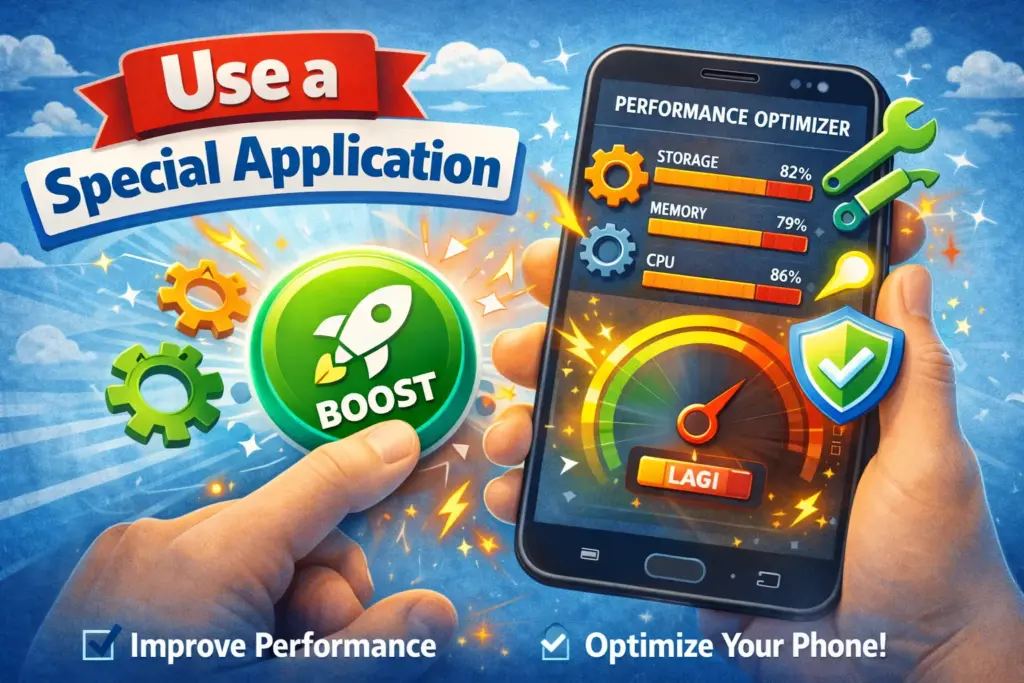
In addition to the various manual methods above, you can also use dedicated apps to clean it directly. There are many apps on the Play Store that can clear the cache, remove unused apps, and even disable apps that cause your Android device to overheat.
The first fairly reliable application is CCleaner . This application, also popular among PC users, can delete junk files, or unused files, thereby freeing up storage space. This application can do this automatically, eliminating the hassle of deleting them one by one.
The next app is Clean Master . Besides deleting junk files, this app can also disable apps that slow down your Android and free up RAM. After using it, you’ll definitely notice a performance boost on your Android smartphone or tablet.
The final app you might want to try is The Cleaner . This app can delete junk files, cache, and even call and SMS history. It also offers a feature to schedule the cleaning process for specific times.
Interestingly, this application will also show how much memory capacity you will get after the cleaning process.
5. Make sure you always update the game
Every app and game on your phone is always updated. So, the next tip to avoid lag when playing games is to ensure you’ve updated the game to the latest version. If you don’t, the game will likely lag.
This could be because the older version is no longer available to play. This can hinder your gameplay. To update to the latest version, you can check Google Play Games. Check for the latest version of the games you frequently play.
6. Use 5G or Wi-Fi Network
If you’re a fan of online gaming but still experience lag, the problem may be with your internet connection. Therefore, you should ensure your internet connection is strong and reliable.
If necessary, switch to a 4G internet connection or use Wi-Fi. Typically, using a 4G internet connection will eliminate lag issues while playing.
If you’re using Wi-Fi, you should also ensure that not many people are using the same Wi-Fi as you. Ensure your internet connection’s PING doesn’t exceed 200ms.
7. Turn off active applications
The next step is to turn off any currently active applications. Yes, your smartphone will feel slow and very slow when you use too many applications simultaneously. This will consume a lot of RAM.
Not only that, even the cellphone battery will drain quickly, making the performance of your Android cellphone even weaker.
So, make sure you don’t open too many apps. You can close any unused apps. This will help improve your Android phone’s performance while gaming.
8. Charging while playing is prohibited.
Charging while gaming is a big no-no. The heat generated while charging will actually slow down your Android phone’s performance, leading to severe lag .
Not only that, playing games while charging can quickly damage your Android phone. Another tip: use a genuine charging cable , not a counterfeit one. Counterfeit charging cables can actually damage your Android phone. So, make sure your battery is fully charged before playing games.
9. Restart your phone
Still experiencing lag while playing games? Another solution we can offer is to restart your phone. Please restart your phone.
After restarting your phone, it’s recommended to let it rest for about 10 minutes. Let your phone rest for a while until it returns to normal. Once you feel it’s had enough rest, you can turn it back on to play games. This method is usually quite effective.
10. Change your phone
If all the solutions above still don’t fix the lagging issue, you might want to try this method. Yes, the problem is likely with your phone.
As you know, phones have limitations for each of their specifications. If you push your phone to work harder, it’s no surprise that it will experience severe lag .
Our solution is to try replacing it with a phone with faster performance. You don’t need to look for an expensive phone, as phones in the 2 million and 3 million range are also capable of playing Android games. Interested in buying a new phone?
So, those are various ways to prevent Android from lagging when using it. This way, you won’t have to bother performing a factory reset to restore its performance. Now you can open a wide variety of apps and games without any lag or similar issues. Good luck!