The most comprehensive guide to learning about how to install APK OBB data files for games & apps on your Android devices, without any errors. We’ll also see how to enable and allow them on your Android phone so you can play or run free games and apps.
Therefore, to install an app or game that uses an OBB & data file, you must follow a step-by-step walkthrough to ensure the app runs properly. Here’s a complete guide to installing apps or games with OBB files on your Android device.
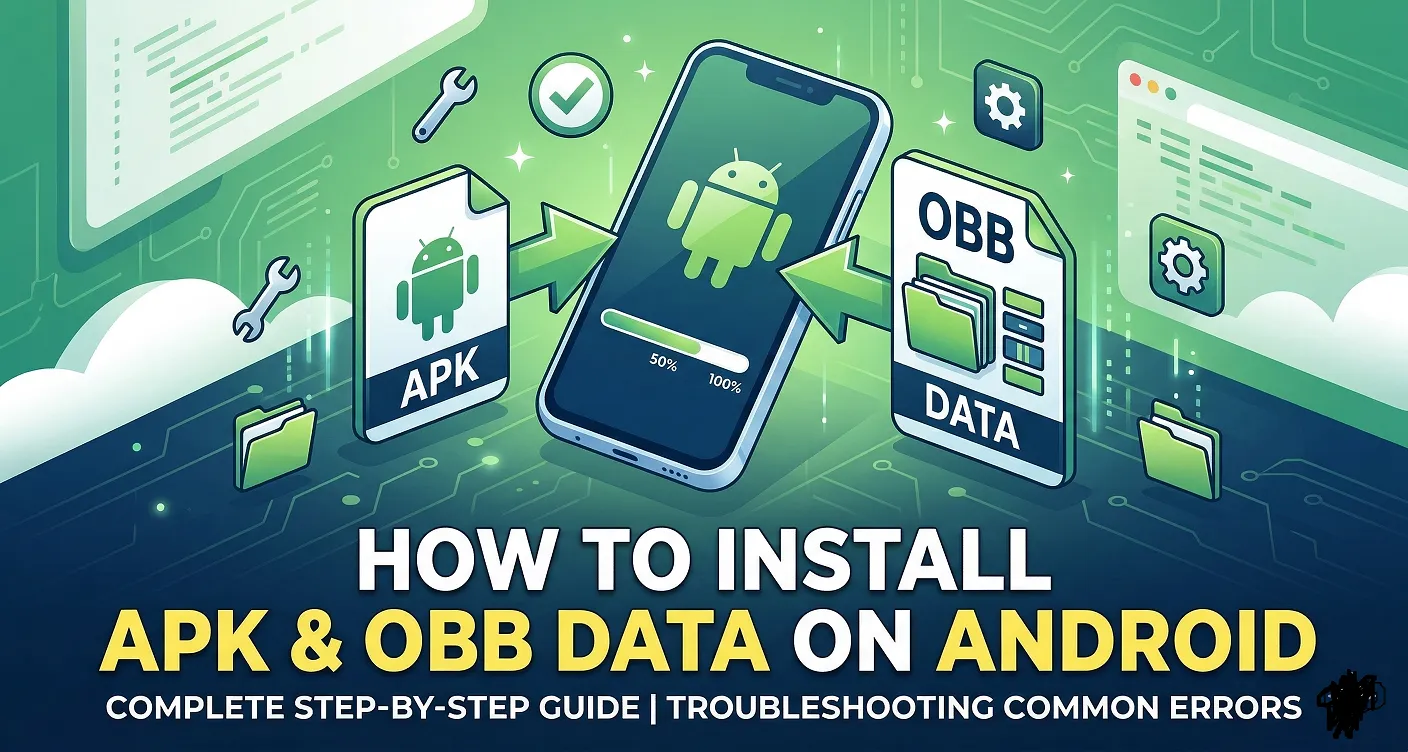
We will cover everything from installation guide to troubleshooting common “Black Screen” issues, ensuring your favorite games run perfectly on the first try.
Table of Contents
Understanding the Components: APK vs. OBB vs. DATA File
Before we dive into the installation, let’s break down what these files actually do.
1. APk File
When we’re on our PC and want to install an application, we search the internet and download the file’s extension as .Exe. When we run it, the application we wanted is installed.
Same As Android. When we download any file there file extension name is .apk, like youtub.apk where the file contains the application’s code, icons, and basic resources.
2. OBB File
These are large data bundles used by developers to store high-quality graphics, heavy media files, and large maps. Because the Google Play Store limits the size of a base APK, these expansion files are necessary for resource-heavy games.
3. Data File
Data File (locate at in the Android/data folder) is just as important as the OBB file. It is slightly different from the OBB file, where the Data folder is the store of app stores’ user-specific information, cache, and additional small downloads.
What are XAPK files?
This format is more recent, but it is becoming increasingly common.
Basically, it’s the combination of an APK file and its corresponding OBB file. If you have XAMPP installed, you don’t need to install them separately; simply running it will give you the same result.
Preparation Before Starting
Before installing an application or game that requires an OBB file, make sure you have:
APK file: Application or game installation file.
OBB File: Usually in ZIP or RAR format, which needs to be extracted.
Data File: Same as the Obb file as discussed before. Some games don’t have a data file. If you don’t have it, just ignore this one
File Manager: An application to copy files to the appropriate folder. For that You can download & Instal best file manager Zarchiver Pro APK.
Installation Permission from Unknown Sources: Enable this permission if you download apps from outside the Google Play Store. For that, go to Settings > Security (or Privacy), Toggle on Install Unknown Apps.
Steps to Install Apk OBB and Data Files
Follow these steps precisely to ensure the Android system recognizes the data files.
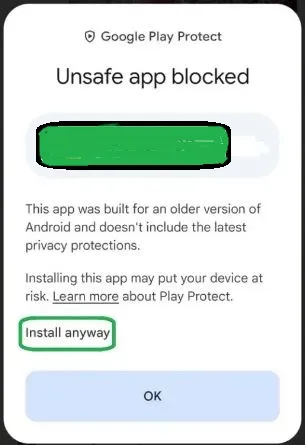
1. Install APK File
- Download the APK file from a trusted source and save it on your device.
- Open File Manager, locate the APK file, then tap on it to start the installation.
- If a permission request appears, allow the app to install.
- Wait for the installation process to complete, but don’t open the application immediately.
2. Extract the OBB file
- If the OBB file you downloaded is in ZIP or RAR format, use an application like ZArchiver to extract it.
- After extracting, you will get a folder with a certain name, such as com.activision.callofduty.
- Open File Manager on your device.
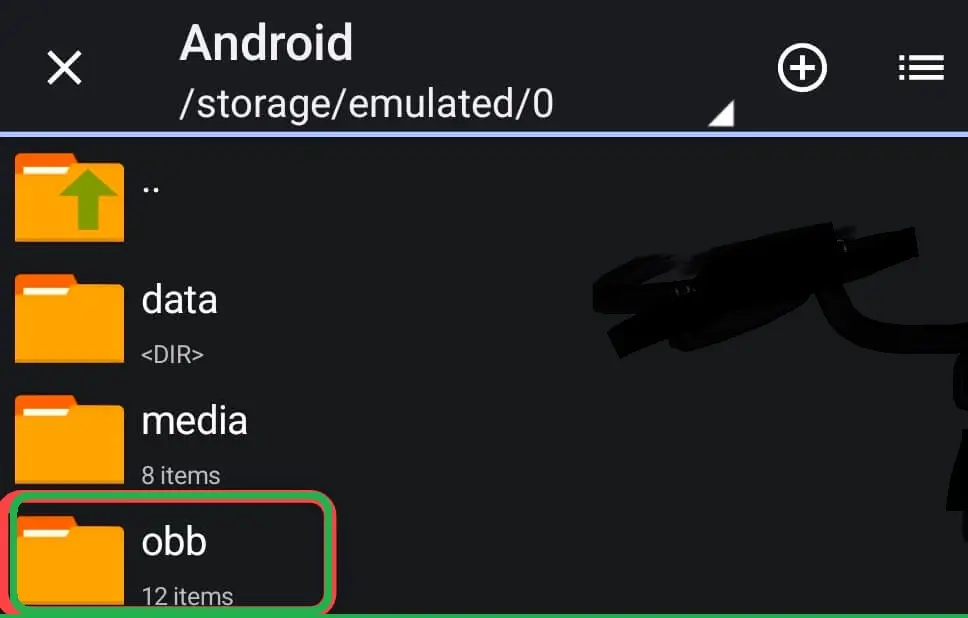
- Move the OBB folder to the directory:
Internal Storage/Android/obb/ - Make sure there is a folder with a name that matches the OBB file (for example, com.activision.callofduty ). If the folder doesn’t exist, create it manually.
- Copy or move the extracted OBB file to that folder.
3. How to Install a Data File
After Install apk obb file, and if your download also includes a “Data” folder (not an OBB), follow these steps as sam as OBB:
- If the Data file is in ZIP or RAR format, use ZArchiver to extract it.
- After extracting, you will get a folder with a certain name, such as com.activision.callofduty.
- Open File Manager on your device.
- Move the Data folder to the directory:
Internal Storage/Android/data/ - Make sure there is a folder with a name that matches the Data file.
- Copy or move the extracted Data file to that folder.
Once the OBB & Data file has been moved to the correct location, open the app or game you installed. The app will read the OBB data you entered and should run smoothly.
Troubleshooting Common Errors
1. APK Validation Failed
You likely placed the OBB file in the wrong directory or renamed the folder incorrectly. Ensure the folder name starts with com.
2. Black Screen on Launch
That means the app has the OBB path but lacks Storage Permissions. Go to Settings > Apps > [Your App] > Permissions and enable Storage.
3. Download Failed
This occurs when the OBB version doesn’t match the APK version. Ensure both files are from the same release build.
Conclusion
Installing apps or games that use OBB files does require a few extra steps compared to regular apps. However, by following this guide, you can easily install apps or games that require OBB files without any errors. Remember to always verify the authenticity of APK and OBB files to keep your device safe from malware or corrupted files. This way, you can enjoy your favorite apps or games to the fullest.