How to Fix Error 0x80242FFF While Updating Windows 10 – We are about to update Windows and the last thing we want is to deal with error 0x80242FFF, with all kinds of errors. This problem will cause us to not be able to restart or shut down the computer normally, not even open applications.
How To Fix Error 0x80242FFF When Updating Windows 10
So we can say that it’s serious, although we can’t deny that solving it is too simple and a little further we’ll teach you two perfect methods to achieve it.
Read more:
- 11 Ways To Fix Error Windows Explorer Has Stopped Working
- 6 Ways to fix the error “This copy of Windows is not Genuine”
- 5 Ways To Fix Network Cable Unplugged Error in Windows
- 3 Ways To Resolve Error Code 0x0003 NVIDIA GeForce
The troubleshooter in Windows 10 allows us to fix a large number of all kinds of errors on our computers. It is an integrated set of operating system tools that can fix various problems that prevent us from using our PCs normally.
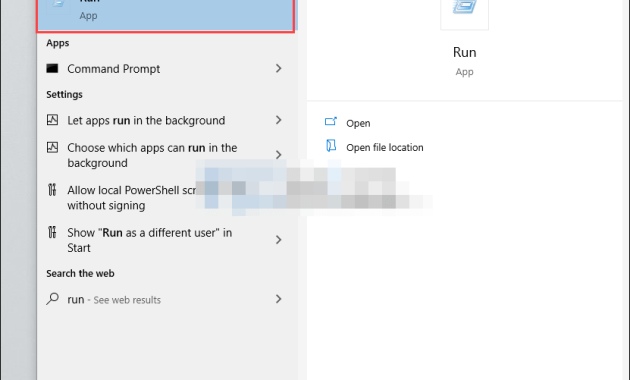
The first thing we will do is click on “Start” and then we will write “Run”, We will press “Enter” to open a dialog box.
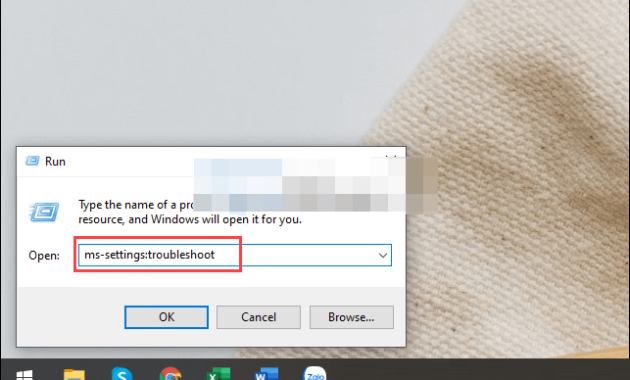
Next, we will copy and paste this text “ms-settings: troubleshoot” without the quotes and press “Enter”.
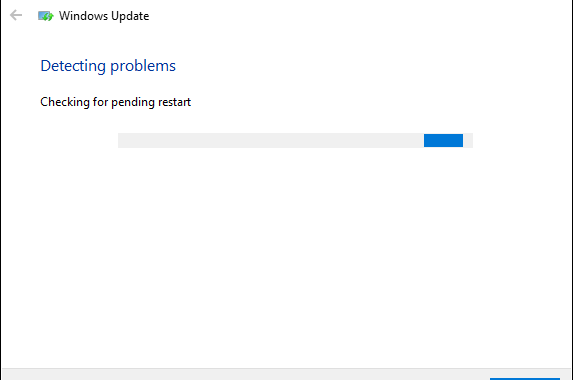
To resolve errors related to Windows updates, we have to select Windows Update from the left sidebar; then in the right pane, we will click on Run the troubleshooter to start the process.
This error correction process can take anywhere from 1 to 2 minutes and is automatic. All we have to do here is wait for everything to finish. If you follow this guide, you won’t have to spend too much time and effort fixing error 0x80242FFF.
With a command prompt
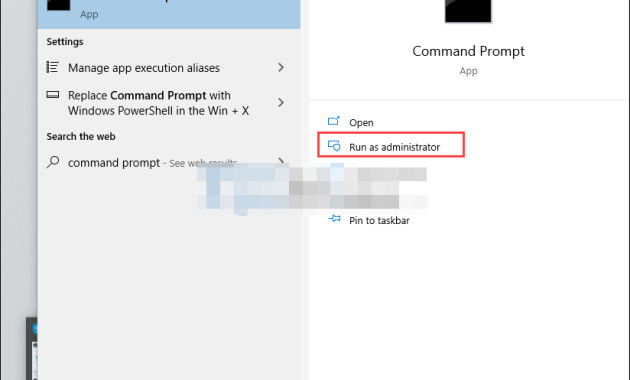
We go to the start menu and write “Command Prompt” and from the right pane we need to select “Run as administrator”.
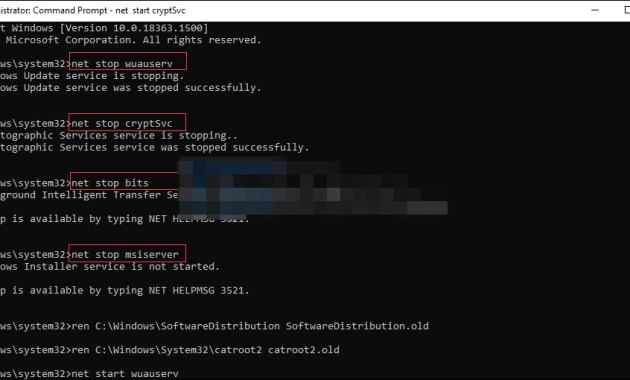
Once the new window opens, we have to copy and paste all the commands we left a little below.
net stop wuauserv
net stop cryptSvc
net stop bits
net stop msiserver
ren C:/Windows/SoftwareDistribution SoftwareDistribution.old
ren C:/Windows/System32/catroot2 catroot2.old
net start wuauserv
net start cryptSvc
net start bits
net start msiserver
exit
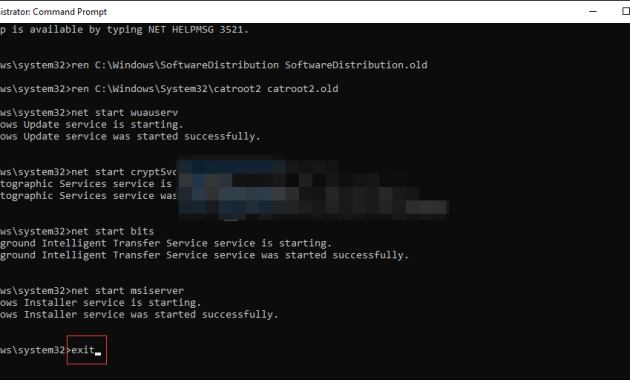
After we run each last command, we have to close the command prompt. At this point, the computer should work normally.
Read more:
- 11 Ways To Fix This App Can’t Run on Your PC Windows 10
- 6 Ways to Fix Blur and Small Text on Windows 10 PC
- How To Reduce Brightness in Windows 7/8/10 PC
Conclusion:
So, friends, This is the explanation of how to fix the error 0x80242FFF When Updating Windows 10, I hope this simple guide will help you fix the annoying Windows Update error 0x80242FFF.



![100+ Avast Premier License Key And [Activation Codes]](https://droidexa.com/wp-content/uploads/2023/08/100-Avast-Premier-License-Key-And-Activation-Codes-324x235.jpg "100+ Avast Premier License Key And [Activation Codes] 2024")
![Top 9 Anime Like Katanagatari [Best Recommendation]](https://droidexa.com/wp-content/uploads/2021/02/Top-9-Anime-Like-Katanagatari-Best-Recommendation-100x70.jpg "Top 9 Anime Like Katanagatari [Best Recommendations] 2025")